
Tag Archive for: Procreate
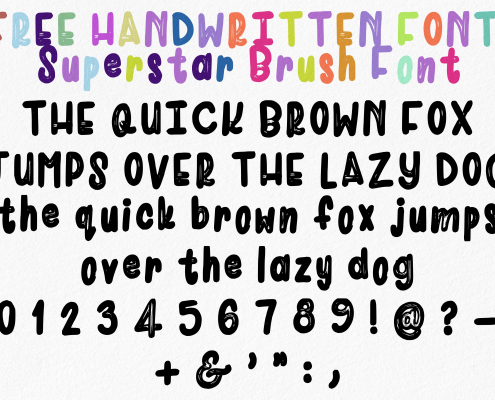 https://sisandamofokeng.co.za/VC/wp-content/uploads/2026/05/IMG_0738-scaled.jpeg
1810
2560
SisandaMofokeng
https://sisandamofokeng.co.za/VC/wp-content/uploads/2025/10/IMG_8229-1-300x300.png
SisandaMofokeng2026-05-10 16:30:502026-08-15 12:14:22Freebies: Brushes, Fonts and Other Fun Stuff
https://sisandamofokeng.co.za/VC/wp-content/uploads/2026/05/IMG_0738-scaled.jpeg
1810
2560
SisandaMofokeng
https://sisandamofokeng.co.za/VC/wp-content/uploads/2025/10/IMG_8229-1-300x300.png
SisandaMofokeng2026-05-10 16:30:502026-08-15 12:14:22Freebies: Brushes, Fonts and Other Fun Stuff https://sisandamofokeng.co.za/VC/wp-content/uploads/2025/04/Chapter-2-Mastering-Procreate.png
563
870
SisandaMofokeng
https://sisandamofokeng.co.za/VC/wp-content/uploads/2025/10/IMG_8229-1-300x300.png
SisandaMofokeng2025-05-06 11:37:002025-12-18 11:33:26Procreate Chapter 2: Layers, Brushes & Color Magic
https://sisandamofokeng.co.za/VC/wp-content/uploads/2025/04/Chapter-2-Mastering-Procreate.png
563
870
SisandaMofokeng
https://sisandamofokeng.co.za/VC/wp-content/uploads/2025/10/IMG_8229-1-300x300.png
SisandaMofokeng2025-05-06 11:37:002025-12-18 11:33:26Procreate Chapter 2: Layers, Brushes & Color Magic https://sisandamofokeng.co.za/VC/wp-content/uploads/2025/04/Chapter-1-Mastering-Procreate.png
563
870
SisandaMofokeng
https://sisandamofokeng.co.za/VC/wp-content/uploads/2025/10/IMG_8229-1-300x300.png
SisandaMofokeng2025-04-22 11:33:362025-12-18 11:52:34Procreate Chapter 1: How to Best Get Started with Procreate
https://sisandamofokeng.co.za/VC/wp-content/uploads/2025/04/Chapter-1-Mastering-Procreate.png
563
870
SisandaMofokeng
https://sisandamofokeng.co.za/VC/wp-content/uploads/2025/10/IMG_8229-1-300x300.png
SisandaMofokeng2025-04-22 11:33:362025-12-18 11:52:34Procreate Chapter 1: How to Best Get Started with Procreate https://sisandamofokeng.co.za/VC/wp-content/uploads/2025/04/tbc-Featured-Blog.png
563
870
SisandaMofokeng
https://sisandamofokeng.co.za/VC/wp-content/uploads/2025/10/IMG_8229-1-300x300.png
SisandaMofokeng2025-04-08 09:00:152025-12-18 12:00:20Mastering Procreate: A Step-by-Step Learning Plan for Beginners
https://sisandamofokeng.co.za/VC/wp-content/uploads/2025/04/tbc-Featured-Blog.png
563
870
SisandaMofokeng
https://sisandamofokeng.co.za/VC/wp-content/uploads/2025/10/IMG_8229-1-300x300.png
SisandaMofokeng2025-04-08 09:00:152025-12-18 12:00:20Mastering Procreate: A Step-by-Step Learning Plan for Beginners